Switch apps with a flick.
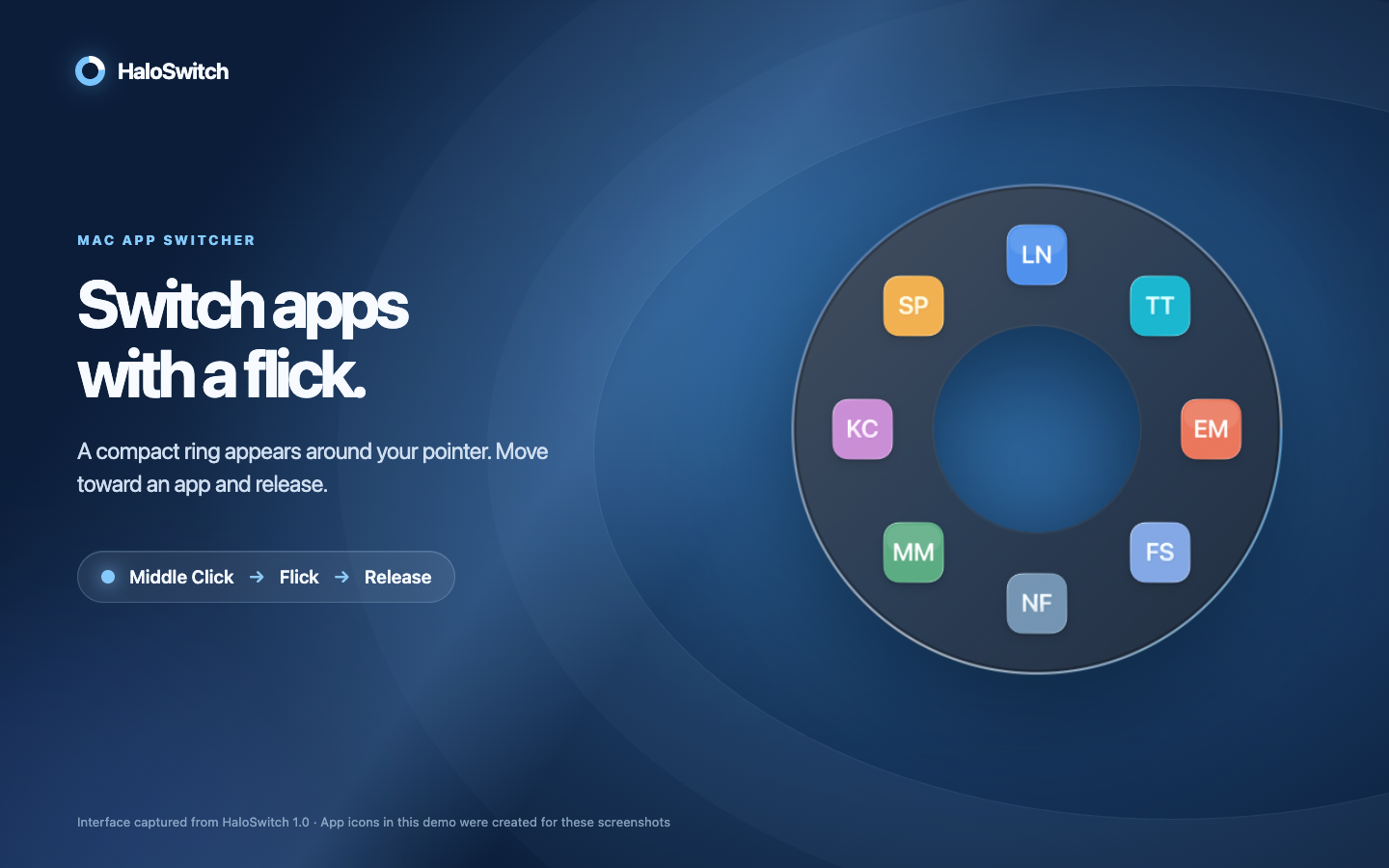
A small radial menu around your pointer keeps your open Mac apps within reach.
Mac App Store release in preparation
A faster way around your Mac.
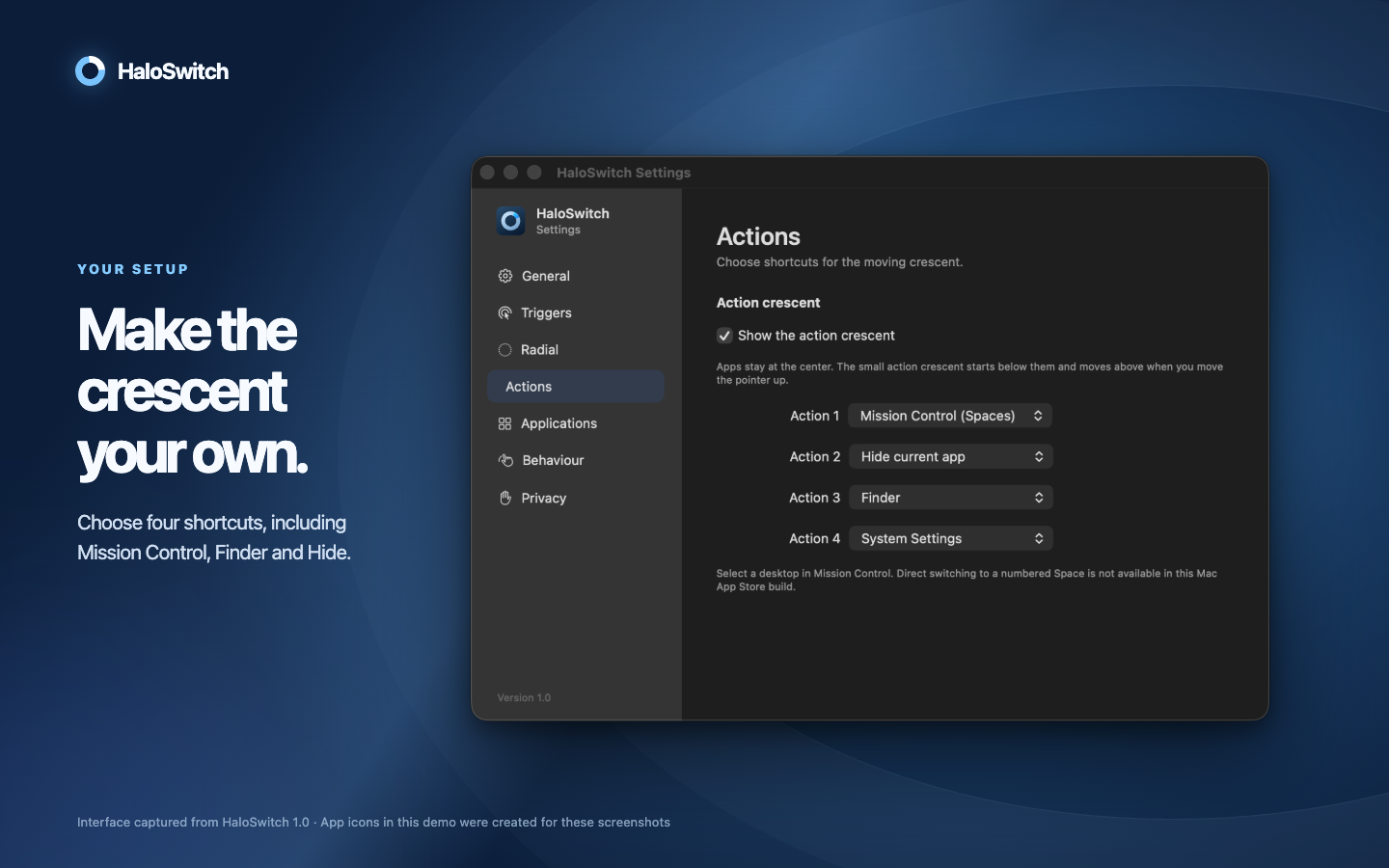
Actual HaloSwitch 1.0 interface. The app icons shown in the ring belong to fictional demo apps created for these screenshots.

Get started
- Hold the middle mouse button to open the ring.
- Move toward an open app and release the button to switch. Move back to the center or press Esc to cancel.
- For a regular mouse or trackpad, use Option + click. The ring stays open after you release; click an app to select it.
You can also press Control + Option + Space, navigate with the arrow keys and press Return. Change triggers and ring behavior in HaloSwitch Settings.
Common questions
The mouse gesture does not open the ring
Open Settings → Triggers and check whether the gesture shows as detected. Try Middle Click or Option + Click in Finder. Some mice map their middle button to another command in their own software.
Does HaloSwitch require Screen Recording?
No. App switching works without it. Screen Recording is only used for optional window previews. You can enable previews in Settings → Privacy and revoke permission in macOS System Settings.
Why did the app underneath also receive my click?
HaloSwitch observes the global mouse gesture but does not consume the original click. Depending on the app underneath, that click may also have an effect there.
Can I choose a specific window or switch Spaces?
The current version switches between open applications. It does not select a specific window or control Mission Control and Spaces.
Contact
Need help or want to report a problem? Email westley@outlook.it. Include your macOS version, mouse model and the steps that caused the issue. Please do not send private window content or sensitive logs.